






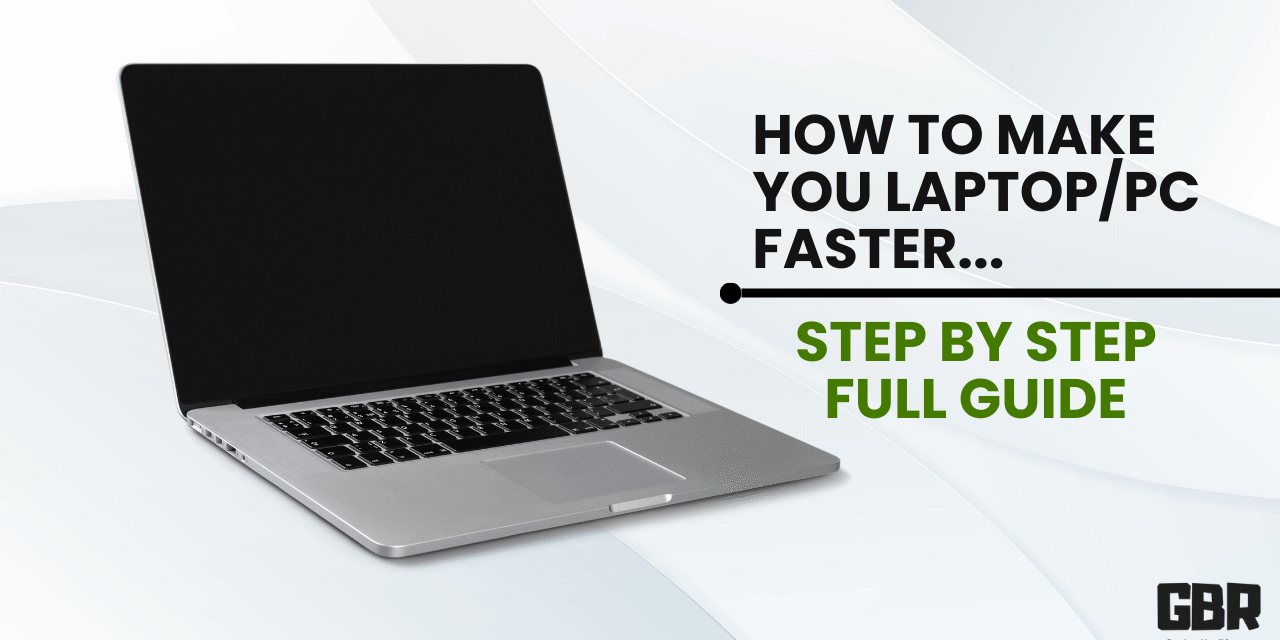
How to Remove Bloatware from a New Laptop 2025, Step by step guide
Introduction
You just got a new laptop. Super exciting, right? But wait… what’s with all these weird apps you never asked for? That’s bloatware — the digital junk food of your brand-new machine. It’s pre-installed software that clutters up your system, slows things down, and hogs space.
Let’s clean that up! This guide will walk you through how to remove bloatware from a new laptop, step-by-step, with friendly advice.
Explore here the demanding Comparison between SD 888 vs Dimensity 8350.
Understanding Bloatware
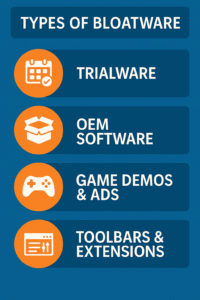
Types of Bloatware
-
Trialware – Antivirus programs or Office suites that nag you until you pay.
-
OEM Software – Manufacturer-branded apps like “HP Support Assistant” or “Dell Update.”
-
Game demos & ads – Candy Crush or Xbox trials? No thanks.
-
Toolbars & extensions – Often bundled with browsers.
How Bloatware Affects Your Laptop
-
Slower boot time ⏳
-
Reduced storage 📉
-
Annoying notifications 😤
-
Drains battery life 🔋
How to Identify Bloatware
| App Name | Needed? | Why? |
|---|---|---|
| McAfee Trial | ❌ | Unnecessary if you use Windows Defender |
| WildTangent Games | ❌ | Pre-installed game demos |
| Dell Customer Connect | ❌ | Rarely useful for average users |
| Realtek Audio Manager | ✅ | Needed for audio settings |
Look for apps you don’t use or recognize. If it sounds sketchy or unfamiliar, it might be bloatware.
Preparations Before Removing Bloatware
Create a System Restore Point
Just in case! Here’s how:
-
Type “Create a restore point” in the Start Menu.
-
Open System Properties.
-
Click “Create” and name it something like “Before Bloatware Cleanup.”
Backup Important Files
Save your documents, photos, or any critical files to:
-
An external drive
-
Google Drive
-
Dropbox
List Essential Programs to Keep
Stick to drivers, audio software, or anything necessary for your device to function properly.
Methods to Remove Bloatware
1. Use Windows Settings to Uninstall
-
Go to Settings > Apps > Installed Apps
-
Click on the app you want gone
-
Hit Uninstall – Done!
2. Uninstall from Control Panel
-
Search “Control Panel” in Start
-
Go to Programs > Programs and Features
-
Select the bloatware
-
Click Uninstall
3. Use PowerShell to Remove Preinstalled Apps
⚠️ Advanced users only!
Open PowerShell as Administrator:
Get-AppxPackage *xbox* | Remove-AppxPackage
4. Third-Party Tools to Remove Bloatware
Want it easy-peasy? Try tools made just for this!
Recommended Third-Party Bloatware Removal Tools
PC Decrapifier
Perfect for beginners. Scans and lists what’s safe to remove.
🌐 https://www.pcdecrapifier.com
Revo Uninstaller
Removes all leftovers after uninstalling apps.
🌐 https://www.revouninstaller.com
Bloatbox
Works with Windows Debloater tools. Great for advanced users.
🌐 https://github.com/builtbybel/bloatbox
Should I Remove It?
Scans your apps and gives yes/no suggestions.
🌐 https://www.shouldiremoveit.com
Clean Your Laptop After Bloatware Removal
Run Disk Cleanup
-
Search “Disk Cleanup”
-
Select drive C:
-
Delete temp files, recycle bin, etc.
Optimize Startup Programs
-
Ctrl + Shift + Esc (open Task Manager)
-
Go to Startup tab
-
Disable anything you don’t need on startup
Update Windows & Drivers
Keep your system running smoothly:
-
Go to Settings > Update & Security
-
Click Check for updates
What to Do if Something Breaks
Restore from a Backup
Plug in your external drive or login to cloud storage and restore anything lost.
Use System Restore
Remember that restore point? Here’s where it shines:
-
Search “System Restore”
-
Choose the point you created earlier
-
Restore!
Reinstall Essential Programs
Use the laptop brand’s support page to get your drivers and software again.
For Example you have a HP laptop you can visit brand’s support by their official page, Here
Pro Tips to Avoid Bloatware in the Future
Choose a Clean Windows Install
Buy laptops from Microsoft Signature or install a fresh copy of Windows 11.
Use Ninite for Clean App Installation
Ninite installs multiple safe apps without junk.
🌐 https://ninite.com
Conclusion
Getting rid of bloatware is like decluttering your digital closet. It frees up space, boosts performance, and just feels… clean. Whether you’re a tech pro or totally new to this, you can reclaim your laptop in less than an hour. Now that it’s done, enjoy that fresh, fast machine like it was meant to be.
FAQs
Q1: Will removing bloatware void my warranty?
A: Nope! As long as you don’t delete essential system files, you’re safe.
Q2: Is it safe to use third-party tools?
A: Yes, just stick with trusted tools like Revo or PC Decrapifier.
Q3: Can I reinstall bloatware if I change my mind?
A: Sure, most can be downloaded from the manufacturer’s website.
Q4: Do Macs have bloatware too?
A: Much less, but some pre-installed apps might still be considered unnecessary.
Q5: How often should I check for bloatware?
A: Once after setup and then every few months, especially after updates.
Please don’t forget to leave a review.










Trackbacks/Pingbacks